No-Code Automation: Connect Your Apps and Save Hours Every Week Without Writing Code
Copying data between apps by hand eats hours and creates errors. No-code automation tools connect your apps with a simple rule: when this happens, do that.
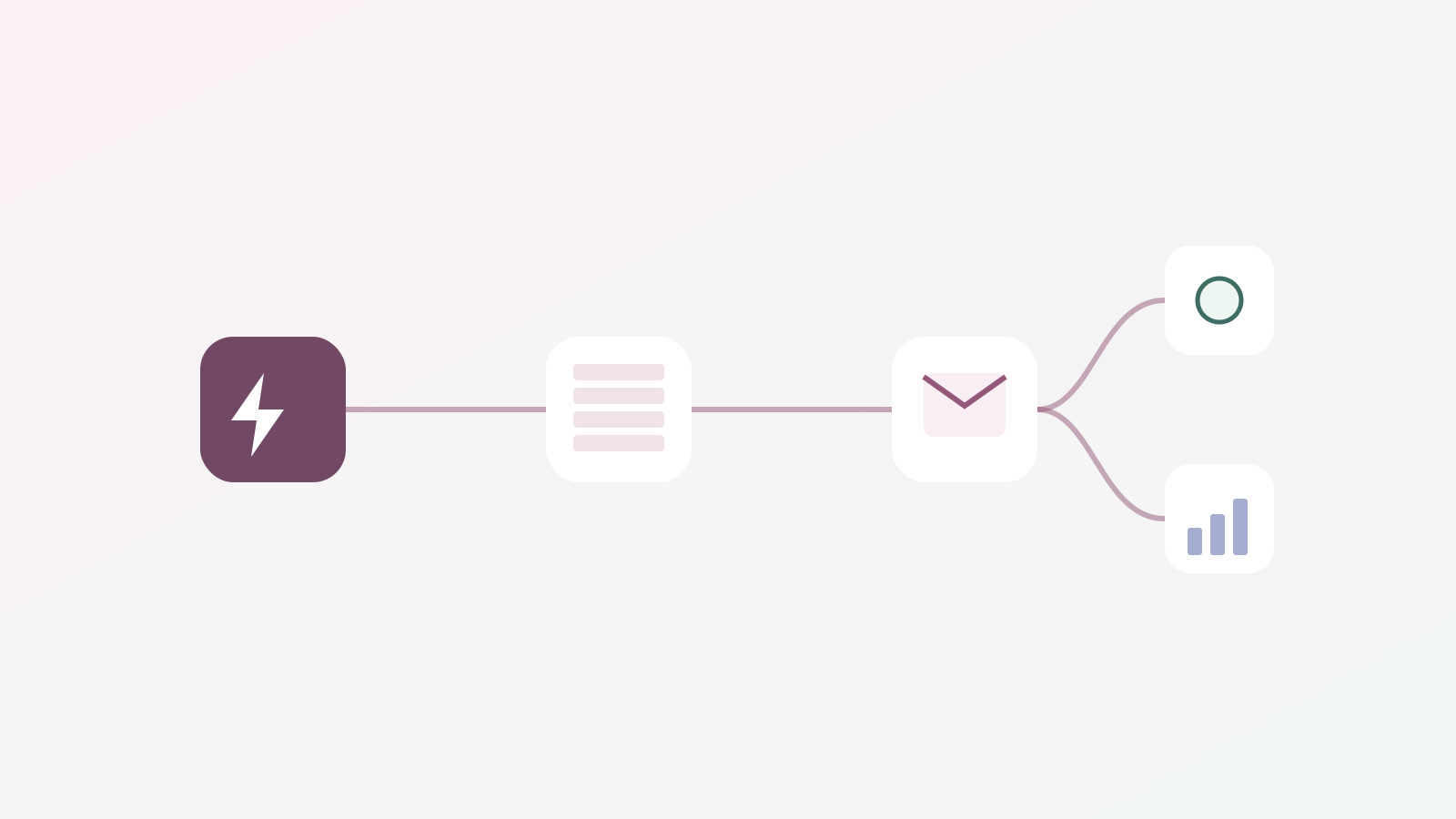
A customer submits a form on your site, so someone copies the details into a spreadsheet, sends them an email, then alerts a colleague in sales. Five minutes each time, dozens of times a week, with inevitable copy errors. No-code automation hands this work to tools that connect your apps with a simple rule: "when this happens, do that", without writing a single line of code.
Key takeaways
- 1Every automation starts with an event in one app, followed by actions in others.
- 2Start with the most repetitive, time-consuming task with clear rules.
- 3Watch costs as run counts grow, and design an error path.
- 4When logic or volume grows, custom development may be cheaper and safer.
What does a no-code automation look like?
Connectors such as Zapier, Make and n8n all work on the same logic: an event triggers the chain, then steps run in sequence across different apps. Here's an example for a request arriving from your website:
A website form becomes organised work automatically
- A new form on the website
The event that starts the chain
- Add a row to the spreadsheet
Name, email, requested service and traffic source
- Alert the sales team's channel
A summary of the request and a link to the row
- Confirmation email to the customer
Confirms receipt and sets the reply time
- A step fails
Alert a named person instead of losing the request silently
Tools such as n8n explain triggers and steps with practical examples in their official documentation, a good starting point even if you choose another tool, since the principle is the same in most of them.
An illustrative example: from website form to team in seconds
A visitor submits a "request a quote" form. The trigger is the form arriving. Step one adds their details to the leads spreadsheet. Step two sends them an email confirming receipt and saying when someone will be in touch. Step three posts an alert to the sales team's channel with their name and the service requested. Step four creates a follow-up task for two days later if the request hasn't been closed. All of this happens in seconds, without anyone copying a single line.
Ready examples to start with
From the form to the spreadsheet, CRM, sales alert and confirmation email.
On a new payment: update the sheet and send a receipt; start with the Invoice Generator.
A new application added to the candidate sheet with an automatic reply.
Weekly numbers from several sources gathered into one file sent every Sunday.
How to choose your first automation
For one week, note every repetitive task you or your team do, how often it happens and how many minutes it takes. Pick the task that meets three conditions: it happens often, its steps are fixed and need no human judgement, and a mistake wouldn't be costly while you're learning. That's the best place to start with no-code automation, because it saves clear time and teaches you the tool without much risk.
Connectors or custom development?
When are connectors enough?
Simple logic and reasonable volume: the fastest, cheapest start.
Complex logic at low volume: possible, but maintenance gets harder over time.
Simple logic at high volume: per-run pricing can climb a lot.
Complex logic at high volume: cheaper, with more control and security long term.
To learn how to tidy processes before automating them, see our business process automation guide.
A practical rule: if you need more than ten steps with nested conditions, if the automation handles large volumes of sensitive data, or if its monthly cost is approaching the cost of building a custom solution, it's time to consider development.
Rules that protect you from chaos
- 1Document every automation
What it does, who owns it and how to switch it off.
- 2Name automations clearly
"Website leads → sheet and sales" is clearer than "Zap 7".
- 3Least privilege
Dedicated accounts for connections, with no more access than needed.
- 4An error path
An alert on failure, and retries that don't duplicate work.
- 5Regular reviews
Remove dead automations and check the monthly cost.
And one cost many people overlook:
Document every automation in two lines
For each automation, write what it does, who owns it and where its errors are reviewed. Keep this in one document the whole team knows about. A year from now you'll have dozens of automations, and without that document nobody will know why a particular email gets sent or where the records in a spreadsheet come from.
Common no-code automation mistakes
Automating a messy process. If the steps aren't clear when done by hand, automation just runs the mess faster. Sort out the process first, then automate it.
Connecting everything to a personal account. An automation tied to one employee's email stops the day they leave. Use company accounts and give access to more than one person.
Ignoring silent failures. An automation that failed two weeks ago without an alert means customer requests nobody answered. Turn on error notifications from day one.
Automating everything at once. Twenty automations in a week are hard to test and monitor. Start with one or two, make sure they run well for a month, then add more.
Forgetting about data privacy. Every connector you add is another place customer data passes through. Check where each tool stores data, connect only the fields a workflow needs, and remove connections you no longer use. Careful no-code automation saves time without creating new risks.
How to measure what automation saved
Before switching on any automation, note how often the task happens each week and how many minutes it takes each time. After a month of running, calculate the time saved and subtract the time you spent setting it up and fixing it. Look too at what doesn't show up in hours: are there fewer data errors, and do customers get replies faster? These numbers tell you which automations deserve expanding and which can be switched off.
Conclusion
No-code automation connects your apps with "when this happens, do that" and saves hours every week: start with the most repetitive task, document every automation, design an error path and watch costs and permissions. For sales specifically, read our CRM automation guide. If you need automation beyond what ready-made tools can do, explore our business automation service.
Frequently asked questions
What are the best-known no-code automation tools?
Well-known ones include Zapier, Make and n8n. They differ in pricing and supported apps, and n8n can be self-hosted for full control.
When do I need custom development instead?
When the logic is complex, the volume makes costs high, you need stronger security and control, or you work with systems the tools don't support.
Is no-code automation safe?
Yes, if you give each connection the least access it needs, use dedicated accounts and regularly review active automations and the data they reach.
How much do no-code automation tools cost?
Most start with a limited free plan, then usually charge by the number of operations or tasks run each month. A simple automation for a form that arrives a few times a day stays cheap, while a workflow processing thousands of records daily can become expensive. Estimate your expected volume before choosing a plan.
What happens if an automation breaks?
The following steps stop, and data can be lost if nobody notices. Turn on error alerts in the tool so you get a message on any failure, review the run history weekly, and know a manual fallback for important tasks until the problem is fixed.
Sources & references

I believe technology is useful when it solves a clear problem — not when it's adopted because it's trendy. AI is a powerful tool for speeding up research, writing, analysis and automation, but it needs human expertise to review, guide and verify accuracy. That's why I prefer to start by understanding the business and its goals, then choose the simplest solution that delivers a measurable result, and build audience trust with honest, useful content.
- Reader rating
- 5.0(2)
- Published articles
- 81
- #no-code
- #automation
- #workflows
How would you rate this article?
Be the first to rate
Comments
No comments yet. Share your thoughts!