Google Search Console Guide: How to Read Its Reports and Turn Them Into Real Improvements
Search Console is your only window onto what Google sees on your site: the queries you appear for, the pages it has indexed and the problems holding you back.
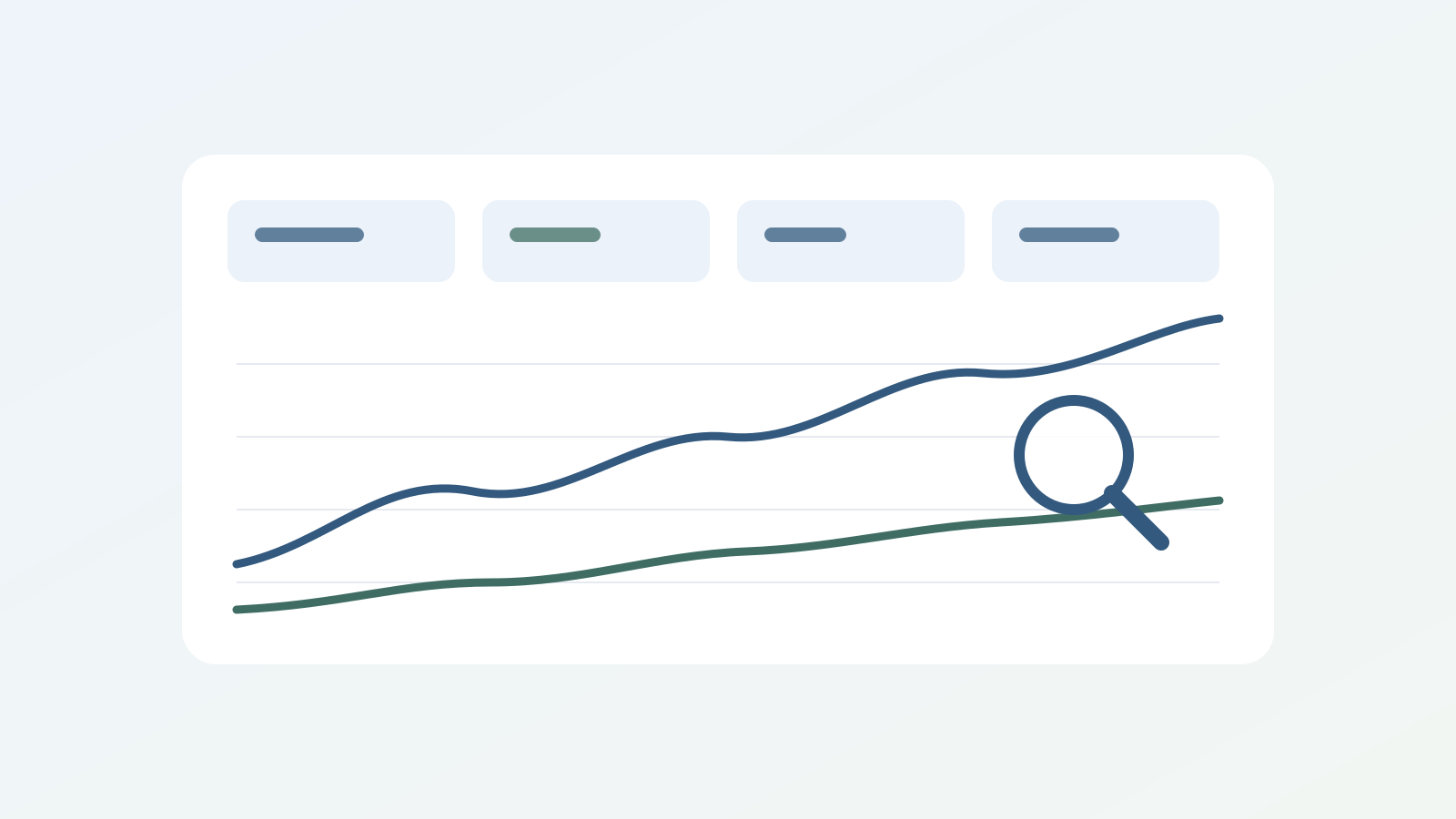
You can guess what Google sees on your site, or you can ask it directly. Google Search Console is a free Google tool that tells you which queries you appear for, which pages it has indexed and what's holding you back. Yet many people open it once and forget it because the reports look numerous and confusing. This guide explains the reports that really matter and how to turn them into improvements.
Key takeaways
- 1Add your site as a Domain property to see every version and subdomain in one place.
- 2The performance report reveals opportunities: pages seen often but rarely clicked.
- 3The indexing report and URL Inspection reveal why a page doesn't appear.
- 4A 15-minute weekly routine beats a long review every few months.
1. Add your site the right way
Search Console offers two property types. A Domain property is verified through a DNS record and covers every version: HTTP and HTTPS, www and non-www, and subdomains. A URL-prefix property covers a single version only. Start with a Domain property to see the full picture, then submit your sitemap as explained in our robots.txt and sitemap guide.
Google's official guide to getting started with Search Console walks through adding and verifying a site, and explains which reports suit site owners and which suit developers.
2. The performance report: what do searchers see?
The performance report is the heart of the tool. It shows four metrics over time, which you can break down by query, page, country and device:
Impressions and clicks over time
How often your link appeared in results, even if nobody clicked it.
How often searchers actually clicked your link.
Clicks divided by impressions, influenced by your title and description.
The average position of your link for the queries it appeared for.
The most powerful use of this report is finding opportunities, not just watching numbers:
| What you see | What it means | What to do |
|---|---|---|
| Many impressions, low CTR | The title or description doesn't persuade searchers | Rewrite them with the SEO Meta Generator |
| Positions 8 to 20 | The page is close to page one | Deepen the content and add internal links to it |
| Queries no page targets | People searching for something you haven't covered | An opportunity for a new article or section |
| A sudden drop for a page | A content, competition or technical change | Check it with URL Inspection |
An illustrative example: a page that appears often but rarely gets clicked
Suppose the performance report shows a service page with thousands of impressions a month and an average position near the first page, but a very low click-through rate. That's the clearest opportunity in the whole report: Google is showing your page, but searchers aren't choosing it.
Open the page, look at the queries it appears for in the queries tab, then read its title and description as they appear in the results. You'll often find the title doesn't mention what people are actually searching for, or the description is generic and gives no reason to click. Rewrite both to match searcher intent, then compare the click-through rate four weeks later with the same period before the change.
3. The indexing report: does Google know your pages?
The "Pages" report splits your URLs into indexed and not indexed, with a reason for each group. Not every unindexed URL is a problem; thank-you pages and duplicates shouldn't be indexed at all. Focus on important pages listed under reasons such as:
Google knows the URL but hasn't visited it yet; it usually needs stronger internal links.
Google visited but didn't find enough value, or saw it as a duplicate.
Several URLs with the same content and no preferred version.
Make sure it's intentional, not a configuration mistake.
For the causes of indexing problems and their fixes, see our technical SEO guide.
Not every unindexed page is a problem
The report lists many reasons for pages not being indexed, and some are perfectly normal: pages that redirect elsewhere, pages deliberately marked noindex such as the cart and login pages, or duplicates where Google chose a different version. The question that matters is whether any important page you want in the results is among them. Start with those alone, and ignore the rest if it's intentional.
4. URL Inspection: the page as Google sees it
Type any URL into the search bar at the top of the tool to see whether it's indexed, when Google last crawled it and which version it chose as canonical. You can test the live URL, see the page as Google rendered it and request indexing once you've fixed the problem.
5. Experience and enhancement reports
The Core Web Vitals report
- Groups pages as good, needs improvement or poor
- Based on real-visitor data over 28 days
- Details in our Core Web Vitals guide
Enhancement reports
- Reveal structured data errors by type
- Breadcrumbs, products and more
- Details in our schema markup guide
6. A 15-minute weekly Google Search Console routine
You don't need hours. This short cycle catches problems early and picks up opportunities:
- 1Performance
Compare the last 28 days with the previous period and look for declining pages.
- 2Indexing
Review new reasons in the Pages report.
- 3Experience
Check that Core Web Vitals groups haven't slipped.
- 4Action
Pick one improvement and ship it this week.
Connect what you see here with visitor behaviour after arrival through our Google Analytics 4 guide.
Keep your weekly notes in a simple spreadsheet: the date, what you noticed and what you changed. After a few months that sheet becomes more valuable than the reports themselves, because it links every movement in the numbers to the decision that came before it. Google Search Console shows you what happened; your notes tell you why.
Common mistakes when reading Google Search Console
Comparing unequal periods. Comparing a week with a public holiday against a normal week gives a misleading picture. Compare full, similar weeks, or the same month a year earlier.
Panicking at every alert. A message about a problem on a handful of pages doesn't mean your site is in danger. Open the details, check whether the affected pages matter, then decide.
Requesting indexing over and over. Pressing the request indexing button repeatedly doesn't speed anything up. Request it once after publishing or updating an important page, then wait.
Reading reports without acting. Opening the tool every week without changing anything won't improve your visibility. Leave every review with at least one action, however small.
Looking only at totals. Overall clicks can stay flat while one important page is quietly losing ground. Filter Google Search Console by page and by query for your key services, so problems show up before they spread.
Conclusion
Google Search Console tells you what Google really sees: where you appear, what gets clicked, and what isn't indexed and why. Add your site as a Domain property, make the performance report your source of opportunities, use URL Inspection to diagnose problems and keep a short weekly routine. If you'd like someone to read the reports and turn them into a plan, explore our SEO and digital marketing service.
Frequently asked questions
What's the difference between Search Console and Google Analytics?
Search Console tells you what happens before the visit: search appearance, clicks and indexing. Analytics tells you what happens after arrival: behaviour and conversions.
How much data does Search Console keep?
The performance report shows the last 16 months of data, so export it regularly if you want longer comparisons.
Why is a page 'crawled but not indexed'?
Usually because Google didn't find enough value in it or saw it as a duplicate of another page. Improve the content and add internal links before requesting indexing again.
How long until data appears after adding a site?
Data usually starts appearing within a few days of verifying ownership, but it doesn't cover the period before you added the site. So add your site early, even before you need the data, so you have history to compare against later.
Should I add team members or an agency to the account?
Yes, from the users and permissions settings, giving each person the least access they need. A marketer may only need read access, while someone submitting sitemaps or requesting indexing needs full access. Remove access as soon as you stop working with any outside party.
Sources & references

I believe technology is useful when it solves a clear problem — not when it's adopted because it's trendy. AI is a powerful tool for speeding up research, writing, analysis and automation, but it needs human expertise to review, guide and verify accuracy. That's why I prefer to start by understanding the business and its goals, then choose the simplest solution that delivers a measurable result, and build audience trust with honest, useful content.
- Reader rating
- 5.0(2)
- Published articles
- 82
- #google search console
- #seo
- #indexing
How would you rate this article?
Be the first to rate
Comments
No comments yet. Share your thoughts!