Learn HTML From Scratch: Build a Web Page With an Editor That Shows the Result Live
HTML is the structure web pages are built on. Start without installing anything, and watch the result appear beside your code as you type.
HTML is the structure almost every web page is built on: headings, paragraphs, links, images and buttons. The good news is that to learn HTML you need no complex software or programming background; an editor that shows the result as you type is enough. This guide uses our free HTML editor with live preview, which runs in your browser and never sends your code to a server.
Key takeaways
- 1HTML describes content structure and meaning, CSS styles it and JavaScript adds interaction.
- 2Each element has an opening tag and a closing tag, and some tags carry attributes such as a link or an image's alt text.
- 3Semantic tags such as header, main and article help search engines and screen readers.
- 4The fastest way to learn: write a line, see its result, then change it.
Learn HTML with code and result side by side
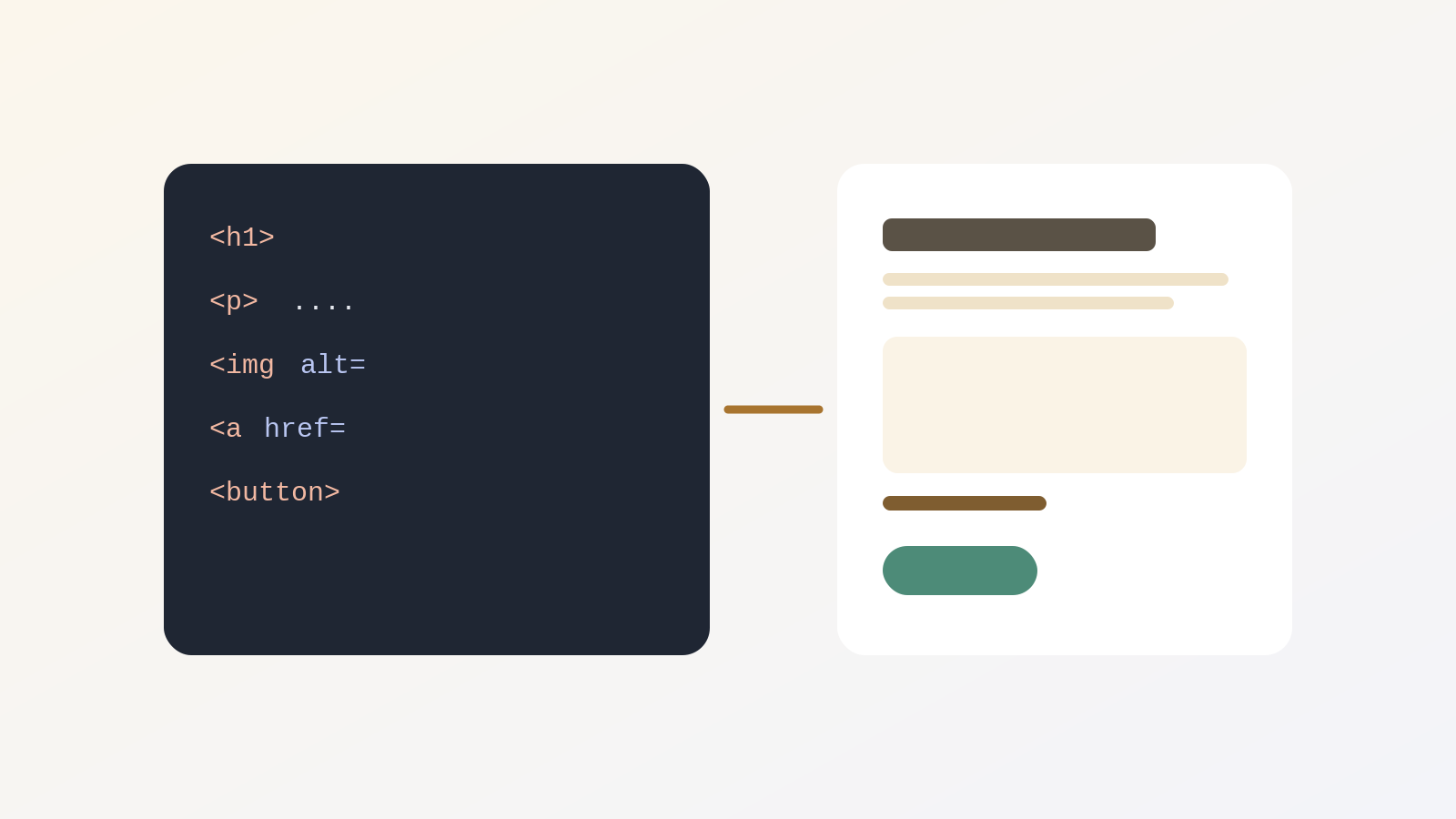
Here's a small page for a bakery. On the left is the code; on the right, what visitors see in the browser. Notice how each line of code matches an element on the page:
Five lines make a page
<h1>Jasmine Bakery</h1>
<p>Fresh bread every morning in <strong>the Narjis district</strong>.</p>
<img src="bread.jpg" alt="Fresh bread on a bakery shelf">
<a href="https://example.com/menu">See the menu</a>
<button>Order now</button>1. Anatomy of a tag
Every HTML element has an opening tag, content and a closing tag, such as <p>text</p>. Some tags carry attributes that add information: the link in href, the image path in src and its alternative text in alt. Some tags are empty and need no closing tag, such as <img>.
| Tag | What it does | Example |
|---|---|---|
| h1 to h6 | Headings from most to least important | The page's main h1 |
| p | A paragraph | A short service description |
| a | A link to another page | With the href attribute |
| img | An image | With src and alt |
| ul and li | A bulleted list and its items | A list of services |
| button | A button | An order or submit button |
The first mistakes everyone makes
Forgetting to close a tag is the most common early mistake: you open <p> and never write </p>, so the paragraph runs into whatever follows. The second is nesting tags in the wrong order, such as opening <strong> inside a paragraph and closing the paragraph before it. The rule is simple: the last tag you opened is the first one you close. An editor with a live preview reveals these mistakes immediately, because you see the page behave oddly the moment you type.
2. The structure of a full page
A real page starts by declaring the document type, then the html tag setting the language and direction, then head for invisible information such as the title and description, then body for everything visitors see:
- 1The document type
The first line
<!DOCTYPE html>tells the browser it's a modern HTML page. - 2The html tag
With lang="en", or lang="ar" and dir="rtl" for Arabic pages to display right to left.
- 3The head tag
The title, description and character encoding, which matter for SEO as in our on-page SEO guide.
- 4The body tag
All visible content: headings, paragraphs, images and links.
Mozilla's MDN HTML reference is the most reliable free reference for tags and their attributes, with an example for each tag and notes on browser support. Keep it open while you learn HTML; you'll come back to it constantly.
3. Semantic tags: meaning, not just looks
You can build a whole page from div tags alone, but you lose meaning. Semantic tags tell the browser, search engines and screen readers the role of each part:
A page without meaning
- div for everything, with no distinction
- Headings made with large text instead of heading tags
- Images with no alt text
A semantic page
- header, nav, main, article and footer
- A logical heading order from h1 to h3
- Alt text describing every image
These tags directly serve accessibility, as explained in our web accessibility guide.
Why search engines and screen readers care about meaning
When you mark the main heading with <h1> rather than large bold text, a screen reader knows it's a heading, so a blind user can jump between headings the way a sighted reader scans the page. Search engines also use the tags themselves to tell the main content apart from navigation or the footer. So semantic HTML isn't a technical detail; it's what makes your page understandable to people and machines alike.
4. A practical learning plan
Twenty minutes of actual writing beats hours of reading alone.
A one-page CV, a restaurant menu, a product page with a contact button.
View the source of a page you like and notice how it's built.
To style the look, then JavaScript for interaction.
Throughout all of this, keep one rule in mind:
A small first project: a personal profile page
After the first week, build one complete page about yourself: a heading with your name, an introductory paragraph, a photo, a list of your skills, links to your profiles and a simple contact form. This small project brings everything together in one place and shows you what you haven't understood yet. Rebuild it two weeks later with proper semantic tags, compare the two versions, and you'll see for yourself how far you've come. It's the most satisfying way to learn HTML: by making something real.
Common mistakes when you learn HTML
Choosing tags for their looks. Picking <h3> because its font size looks right, rather than because it's a third-level subheading, confuses the page structure. Choose tags by meaning and leave appearance to CSS.
Too many <div> elements. A <div> is useful for grouping, but a page made entirely of them says nothing about its content. Use <header>, <nav>, <main> and <article> where they fit.
Forgetting alt text. Every image needs an alt attribute describing what it shows, except purely decorative images, whose alt text is deliberately left empty.
Copying code without understanding it. Copying ready-made examples speeds up the start, but write the code yourself at least once, change it and watch what happens. That's how you learn HTML properly rather than memorising it.
Skipping validation. Browsers are forgiving and will display broken HTML anyway, which hides mistakes. Run your page through the W3C validator now and then; fixing what it reports teaches you the rules faster than any tutorial.
Practice exercise: a profile card in 15 minutes
Open the editor, start from the template and work through these steps: change the h1 to your name, add a short paragraph about your work and a ul list of three skills. Add a mailto: link to your email and a photo with alt text. In CSS, centre the card with a maximum width of 520px, rounded corners and a soft shadow. Finally, add a button that logs a message to the console when clicked. Check the mobile preview, then download the file — a small project you can grow into a full personal page.
Conclusion
Learning HTML starts with understanding tags and their attributes, then page structure, then semantic tags that give content its meaning. Write, watch the result, change it and build small real projects. When you move from a practice page to a real website, our professional website guide explains what changes. Start now in the live HTML editor.
Frequently asked questions
Is HTML a programming language?
HTML is a markup language describing content structure and meaning, not a programming language in the strict sense. CSS handles design and JavaScript handles interaction.
How long does it take to learn HTML basics?
You can grasp the basics in a few days of regular practice. Mastery comes from building small real projects.
Do I need software to write HTML?
No. An in-browser editor with a live preview is enough, such as our free HTML editor, which never sends your code to a server.
What's the difference between HTML, CSS and JavaScript?
HTML defines a page's content and structure: this is a heading, this is a paragraph, this is a link. CSS defines how it looks: colours, fonts, spacing and layout. JavaScript adds behaviour and interaction: what happens when you click a button or submit a form. Always start with HTML, because it's the foundation the other two work on.
Do I need to memorise every tag?
No. You'll use around twenty tags for most of your work, and you'll remember them through repetition rather than deliberate memorising. Look the rest up in a reliable reference when you need them. What matters is understanding the idea: each tag describes the meaning of a piece of content.
Sources & references

I believe technology is useful when it solves a clear problem — not when it's adopted because it's trendy. AI is a powerful tool for speeding up research, writing, analysis and automation, but it needs human expertise to review, guide and verify accuracy. That's why I prefer to start by understanding the business and its goals, then choose the simplest solution that delivers a measurable result, and build audience trust with honest, useful content.
- Reader rating
- 5.0(2)
- Published articles
- 82
- #HTML
- #CSS
- #web basics
- #tutorial
- #html editor
How would you rate this article?
Be the first to rate
Comments
No comments yet. Share your thoughts!